

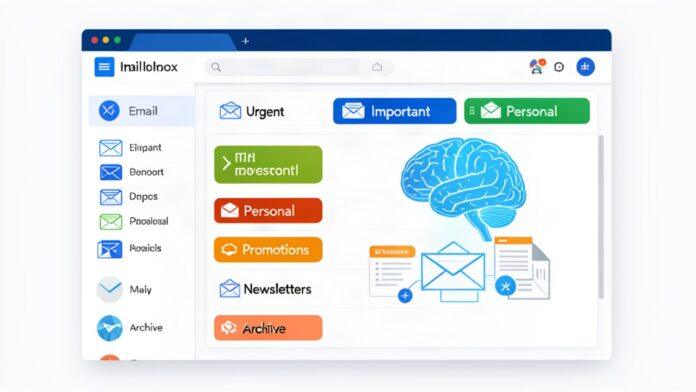

A Step-by-Step Guide to Reviewing Your ProtonMail with AI
Proton Mail just launched native Categories in August 2026, and you can take email organisation further with AI tools like ChatGPT, Claude, or Hermes. Here is exactly how to review and categorise your ProtonMail, with prompts you can copy and paste.
Proton Mail’s Built-In Categories
Proton Mail introduced native Categories in August 2026, rolling out gradually through September. The feature sorts incoming emails into six groups automatically.
| Category | What it is | Default |
|—|—|—|
| Primary | Personal and work emails, important updates | Always on |
| Social | Social media notifications and activity | On |
| Promotions | Deals, discounts, and sales | On |
| Newsletters | Non-promotional content and news | On |
| Transactions | Bookings, billings, and orders | Off |
| Updates | Automated confirmations and alerts | Off |
The key privacy detail: Proton categorises emails using metadata only, sender address, subject line, and headers. It never reads your email content because of zero-access encryption. Moving an email to a different category trains the model for next time.
To enable Categories, go to Settings > Messages and composing > Email categories. You can hide any category you do not use. Primary cannot be disabled.
This is a good first pass, but it has limitations. Older emails are not retroactively categorised. There is no Forms category. And the metadata approach cannot understand context, tone, or what an email actually means to you.
Using AI for Deeper Email Review
For more intelligent categorisation that understands email content, you need an AI assistant. The approach depends on whether you want to connect your inbox directly or export data locally.
Option 1: Connect via Gmail (if you use Proton with Gmail forwarding)
ChatGPT and Claude both support Gmail connectors. Once connected, the AI reads your unread messages, sorts them into categories, and drafts replies.
In ChatGPT, go to Settings > Plugins > select Gmail. In Claude, go to the Connectors menu > Manage Connectors > Add > search for Gmail.
**Copy this starter prompt:**
Review up to 15 unread emails from the last 48 hours. Group each into reply today, review later, or no action. Then draft a concise reply to the most urgent reply today email using the full thread, but ask before sending.
Option 2: Export Your Email as CSV (most private)
If you want to keep everything local and private, export your Proton Mail messages as CSV. Proton Mail supports exporting messages through the web interface. Go to Settings > Filters and add filters, then export the results. Or use the mailpouch MCP server which connects directly to Proton Bridge for local-only, permission-gated access.
Once you have a CSV, upload it to ChatGPT or Claude and run the prompts below.
**Copy this inbox analysis prompt:**
Analyse the entire contents of my email export. Categorize each email into one of these groups: Important (personal or work-related, requires action), Promotional (marketing, offers, sales), Spam (unsolicited or suspicious), or Other (receipts, confirmations, informational). For each category, provide the total count, key examples with sender and subject, and any common patterns you identify. Identify emails likely candidates for deletion. Provide actionable recommendations on which to delete to free up space while retaining important emails. Use bullet points and tables for clarity.
**Copy this triage-by-urgency prompt:**
Scan my email export and categorize every message into three tiers: Urgent (needs a response within 4 hours), Important (needs a response this week), and Low (informational, no response needed). Output a table with columns for Sender, Subject Line, Tier, and Recommended Next Action. Sort by tier, with Urgent at the top. For the Urgent tier, add a one-line description of what action is required.
**Copy this subscription email review prompt:**
Review all marketing emails and newsletter subscriptions from the past 14 days. Group them by sender. For each sender, show how many emails were sent, whether any were opened, and a recommendation of Keep, Digest (batch into weekly summary), or Unsubscribe. Present the results as a ranked table with Unsubscribe recommendations at the top. At the bottom, calculate the total number of emails I could reduce by unsubscribing.
Option 3: Rules-Based Triage with Claude
Write a rules file on your computer, then ask Claude to apply it to your inbox. This gives you the most control and works with any email provider.
Create a file called `email-rules.txt` on your Desktop with this template:
EMAIL TRIAGE RULES
SKIP (do not read or process):
- Any email from [your bank], [your doctor], [HR notifications]
URGENT (action within 4 hours):
- Emails from: [your boss], [key client], [partner name]
- Subject contains: deadline, today, ASAP, overdue
- A reply in a thread I started, waiting more than 3 days
NEEDS MY REPLY (within 24 hours):
- Direct questions to me, meeting requests, client questions
FYI (read when convenient):
- Team updates, newsletters I actually read, tool digests
ARCHIVE (no action):
- Marketing, social notifications, receipts, newsletters I skip
Replace the bracketed names with your actual contacts and trigger words. Then run this prompt:
Read email-rules.txt on my Desktop. Open my email export or inbox. Read all unread emails. Categorize each one using the rules above. Save a summary to a file called inbox-summary.txt with sections: URGENT (sender, subject, why), NEEDS MY REPLY (sender, subject, the draft), FYI (sender and subject), ARCHIVE (count only). Do not archive anything on this first run. Instead label every archive candidate Claude-Archive-Review so I can check them.
How to Use Hermes for Automated Email Reviews
If you use Hermes Agent, you can automate this entirely with a cron job. Hermes connects to Proton Mail through Proton Bridge and can run scheduled email reviews.
The `mailpouch` MCP server provides 69 tools for agentic email access via Proton Bridge. It runs locally, is permission-gated, and supports natural-language commands for search, sorting, and organizing.
To set up a recurring review:
1. Configure Hermes with the mailpouch MCP server connected to your Proton Bridge
2. Write a cron job that runs the triage prompt against your latest inbox export
3. Schedule delivery of results to your preferred platform (Telegram, WhatsApp, etc.)
4. The agent learns from your corrections over time, improving categorisation accuracy
The advantage of this approach is that everything stays local. Proton Bridge handles the connection, the MCP server stays on your machine, and the AI processes data offline.
Building a Weekly Email Review Routine
The best system combines Proton’s native Categories with a regular AI-powered review.
**Monday morning (15 minutes):** Export the previous week’s emails as CSV. Run the inbox analysis prompt. Review the Urgent and Important tiers.
**Wednesday (10 minutes):** Run the subscription review prompt to check for new spam or forgotten subscriptions.
**Friday (10 minutes):** Run the triage-by-urgency prompt for the week’s remaining emails. Archive what can be archived.
**Monthly (20 minutes):** Run a comprehensive analysis covering spending-related emails, commitments made, and commitments still open.
Prompts for Tracking Commitments
**Copy this prompt:**
Review my emails from the past 30 days. List every commitment I made, including deliverables, intros, answers, calls, and promises to send information. For each, note who it was for, what was promised, and when it was made. Rank them by how overdue they are. Highlight anything older than 7 days that still has no evidence of being completed.
**Copy this prompt for designing a daily routine:**
I receive roughly [N] emails a day and can give email [X] minutes in the morning and [Y] minutes in the afternoon. Design my daily triage routine: what happens in each block, in what order, and the rule for what to do the moment something new arrives outside those blocks. Include the specific trigger for when to switch from triage mode to deep work mode.
Security and Privacy
When using AI for email review, follow these practices:
- Export CSVs and remove sensitive columns (account numbers, full addresses) before uploading
- Use the mailpouch MCP server for local, permission-gated access via Proton Bridge
- Never share your Proton Mail login credentials with any AI service
- Enable two-factor authentication on all platforms
- Follow the principle of least privilege: grant only the data access the task requires
- If using Gmail connectors, review what permissions you are granting
- Remember: Proton Mail’s own Categories never read your content because of zero-access encryption
What AI Cannot Do
AI email tools can categorise, summarise, prioritise, and draft replies. They cannot send emails on your behalf without explicit approval, they cannot access your inbox without a connector or exported data, and they are not licensed financial advisors or legal counsel. Always review AI output before acting on it. The system is only as good as the rules you give it. Start with simple categories, tune the rules weekly, and expand as you build trust.
The best email system is the one you actually run every week. Proton Mail’s Categories handle the automatic sorting for free. Add a weekly AI review using the prompts above, and you will know exactly what needs your attention before you even open your inbox.
Related Reading
- Proton Mail Categories, Official Guide | Complete setup instructions for native email categories
- Using Categories in Proton Mail | Announcement and privacy details
- How to Automate Email Triage With ChatGPT or Claude | Step-by-step connector setup and triage prompts
- Build an Email Triage System with Claude | Rules-based approach with custom triage files
Sources
Analysis based on Proton Mail official documentation, AI email triage research from MindStudio and YouCanBuildThings, the mailpouch MCP server documentation, prompt libraries from DocsBot, DragApp, and Rocket.New, and Proton Mail’s privacy-focused categorization approach. No personal email information is included in any prompt or example.
